Search blog

Friday, December 21, 2018

[SOLVED]: Same Web Property ID Is Tracked Twice | Google Tag Manager | Magento 2

[SOLVED]: Same Web Property ID Is Tracked Twice | Google Tag Manager | Magento 2
Click on image to enlarge

If your Tag Assistant is firing this warning 'Same web property ID is tracked twice' while testing in your Magento 2 site, then it's because you've enabled Google Analytic in your Magento store backend, and also in Google Tag Manager.

SOLUTION: Enable Google Analytics tracking either from your site's backend or by using Google Tag Manager, but not both.

Click on image to enlarge

If you want to use Google Tag Manager for Google Analytics then disable tracking from your site's backend.

Saturday, November 24, 2018

Third Party IT Repair Services & Tech Support Ads Banned By Google Ads

Today while trying to launch some PPC Campaign for a Repair Service for my business, I was met by a RUDE SHOCK due to a policy change in Google Ads.

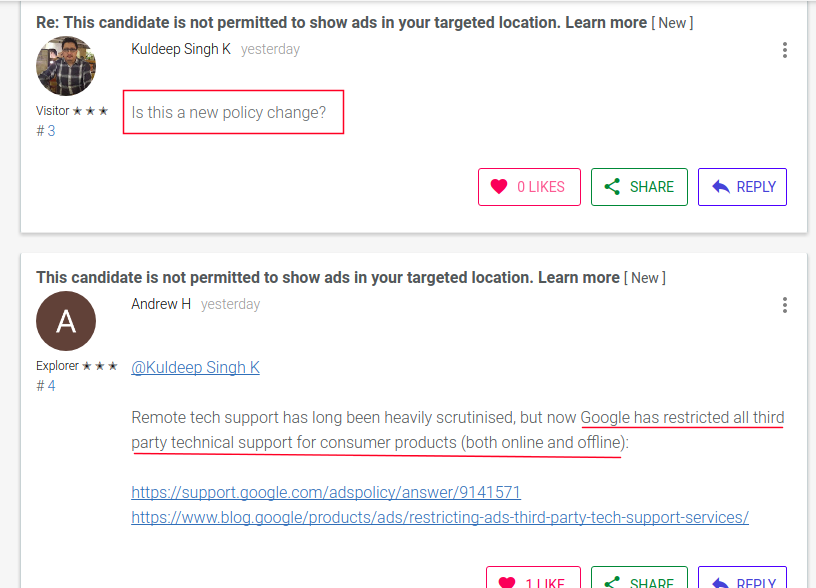
Each time I tested keywords such as 'iphone repair dubai' 'data recovery dubai', I was greeted with this unfamiliar message 'This candidate is not permitted to show ads in your targeted location.', as shown in the image below:

Click on image to enlarge
After much searching and researching, I finally found out that IT Repair Services, Tech Support, both online or offlline has been banned by Google Ads globally for any 3rd party company. Meaning unless you are the real vendor/manufacturer of the product, you aren't allowed to display Ads providing service or support for that product. Please check the links I've listed below for further clarification. Hard pill to swallow, leave alone digest, but that's what seems to be the case at the moment. And I guess this is the result of all those Indian Tech Scammers, who have been targeting mostly Americans. Because of them now all have to suffer! :-(

This candidate is not permitted to show ads in your targeted location. Google Ads
Click on image to enlarge

References:

Monday, September 3, 2018

[SOLVED] - Thunderbird Could Not Get Password - Fix for Ubuntu/Linux

If you have been getting the following error "Thunderbird Could Not Get Password," and because of this have been unable to log into your Email Account or Send Emails, you can try the solution below that worked for me.

>> Close your Thunderbird Email Client. Goto your Home folder and Press CTRL+H to view hidden folders, or in your Menu, goto View >> Show Hidden Files.

[SOLVED] - Thunderbird Could Not Get Password for Ubuntu
Click on image to enlarge
>> Click on the .thunderbird folder.

[SOLVED] - Thunderbird Could Not Get Password for Ubuntu
Click on image to enlarge
>> Click on the shbh8pem.default folder.

Click on image to enlarge
>> DELETE the following two files as highlighted in the image above:
  • cert8.db
  • key3.db 
>> Now OPEN Thunderbird and press F5 to Send/Receive Emails. If it prompts for a password enter it.

>> Try SENDING an Email from. If it prompts for a password enter it.

>> If the above solution doesn't work, RESTART your system, and repeat the steps above.

>> Your problem should have been resolved now.

Wednesday, July 25, 2018

Learn in 10 Seconds How to Easily Copy Same Data Across Multiple Cells in LibreOffice Calc

Here's a very easy way that I've found with which you can easily copy same data across multiple cells.

If you are COPYING TEXT, then you don't need to press any keys. But if you would like to COPY Numbers across cells, then press CTRL key while dragging the mouse, as shown in the video.


Top 5 Posts (Weekly)